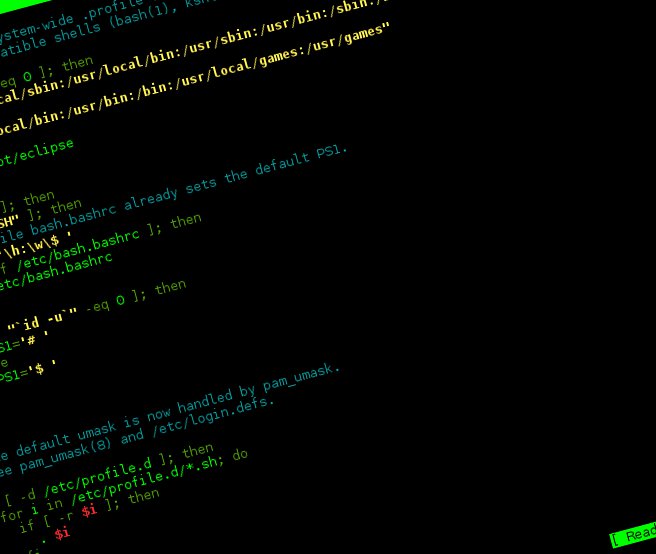
To add an application to the PATH variable on Linux Mint Debian, or any Debian, edit the /etc/profile file.
$ sudo pluma /etc/profileBefore the "export PATH" line, insert PATH=$PATH:/path/to/the/program. Use ":" as the value separator. Here's how my /etc/profile looked with a path to eclipse:
# /etc/profile: system-wide .profile file for the Bourne shell (sh(1))
# and Bourne compatible shells (bash(1), ksh(1), ash(1), ...).

if [ "`id -u`" -eq 0 ]; then
  PATH="/usr/local/sbin:/usr/local/bin:/usr/sbin:/usr/bin:/sbin:/bin"
else
  PATH="/usr/local/bin:/usr/bin:/bin:/usr/local/games:/usr/games"
fi
PATH=$PATH:/opt/eclipse
export PATH

if [ "$PS1" ]; then
  if [ "$BASH" ]; then
    # The file bash.bashrc already sets the default PS1.
    # PS1='\h:\w\$ '
    if [ -f /etc/bash.bashrc ]; then
      . /etc/bash.bashrc
    fi
  else
    if [ "`id -u`" -eq 0 ]; then
      PS1='# '
    else
      PS1='$ '
    fi
  fi
fi

# The default umask is now handled by pam_umask.
# See pam_umask(8) and /etc/login.defs.

if [ -d /etc/profile.d ]; then
  for i in /etc/profile.d/*.sh; do
    if [ -r $i ]; then
      . $i
    fi
  done
  unset i
fi
Changes to /etc/profile apply to all system users. In the user's home folder there is a .profile file that can also be edited.
Another way to add an application to the path is to put a symbolic link to the application in the /usr/bin folder. See how the Google Chrome installer did it:
$ ls -l /usr/bin/google-chrome
lrwxrwxrwx 1 root root 32 Jun  7 03:17 /usr/bin/google-chrome -> /opt/google/chrome/google-chrome
You get the same effect using the following command:
$ ln -s /opt/google/chrome/google-chrome /usr/bin/google-chromeThat's all for today, folks!
Comments 3
[…] Veja também como colocar seu programa no path neste artigo. […]
na boa.. muito ruim para visualizar a imagem do terminal… nada didático..parece a pedra de roseta modo texto..kkk
Melhorou agora?