This one is for those who, like me, are noobs at Linux desktops.
I just downloaded the deb package for Google Chrome and, when I double-clicked the file, the one that opened it was File Roller and not GDebi, which is the default package installer of Linux Mint Debian Edition 12. Speaking of which, GDebi was made by Canonical (could there be Ubuntu in my Debian? :-P).
I prefer that .deb files stay associated with GDebi to make life easier, and to do that just right-click the file, go to the "Open with" tab, select GDebi Package Installer and click Set as Default.
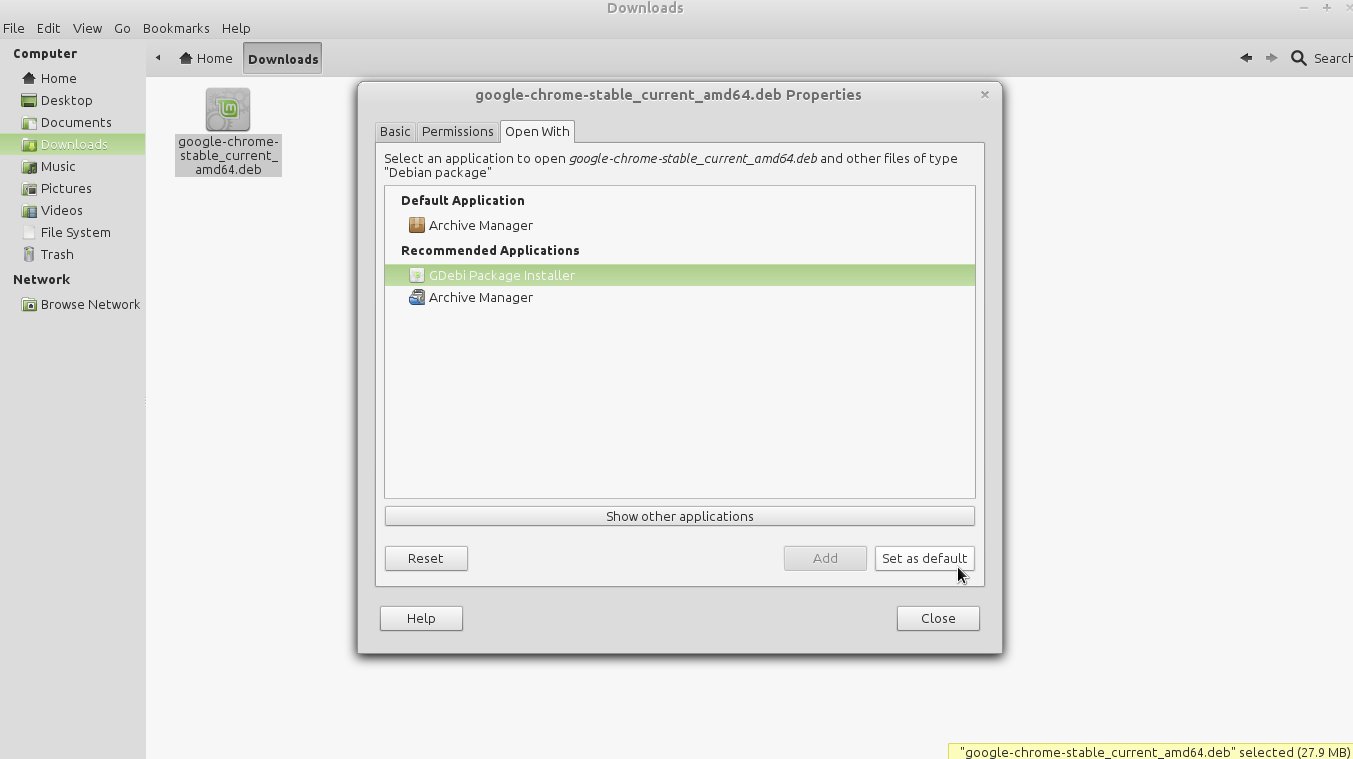
.deb default to GDeb
Obviously this works for any kind of file. If your preferred program doesn't show up among the recommended programs, click "Show other applications". And what if your program doesn't appear under "Show other applications"? You'll probably need to create a .desktop file for it. See how to do that here.
Note that I prefer my Linux in English, even though all my localization and keyboard settings are set to Portuguese/Brazil. I prefer it this way because it makes it easier to search for questions, error messages, program names, etc.
So that's it! The tip is simple but I didn't know it…
Comments 2
Tem como escolher software que não está na lista?
Tem sim. Tive um problema desse recentemente e por exemplo eu queria usar o sublime text 2 como substituto do gedit mas nada do sublime aparecer na lista. Isso mesmo eu tendo criado o arquivo .desktop para o sublime. Caso você ainda não tenha criado o arquivo eu tenho um tutorial sobre o assunto aqui: http://www.devhouse.com.br/arquivos-desktop-colocando-seu-aplicativo-nos-menus-do-gnome/.
Se mesmo assim o programa não apareça na lista adicione um %f ao final da linha exec do arquivo desktop. O meu ficou assim:
exec=/opt/Sublime/sublime_text %f