Ever since I bought the Galaxy Tab I'd read that it was possible to run Linux on Android. I soon saw that this could be useful: having a complete Linux system at your fingertips. Even better: I even bought the original Samsung keyboard dock and a bluetooth mouse to make the whole thing even nicer.
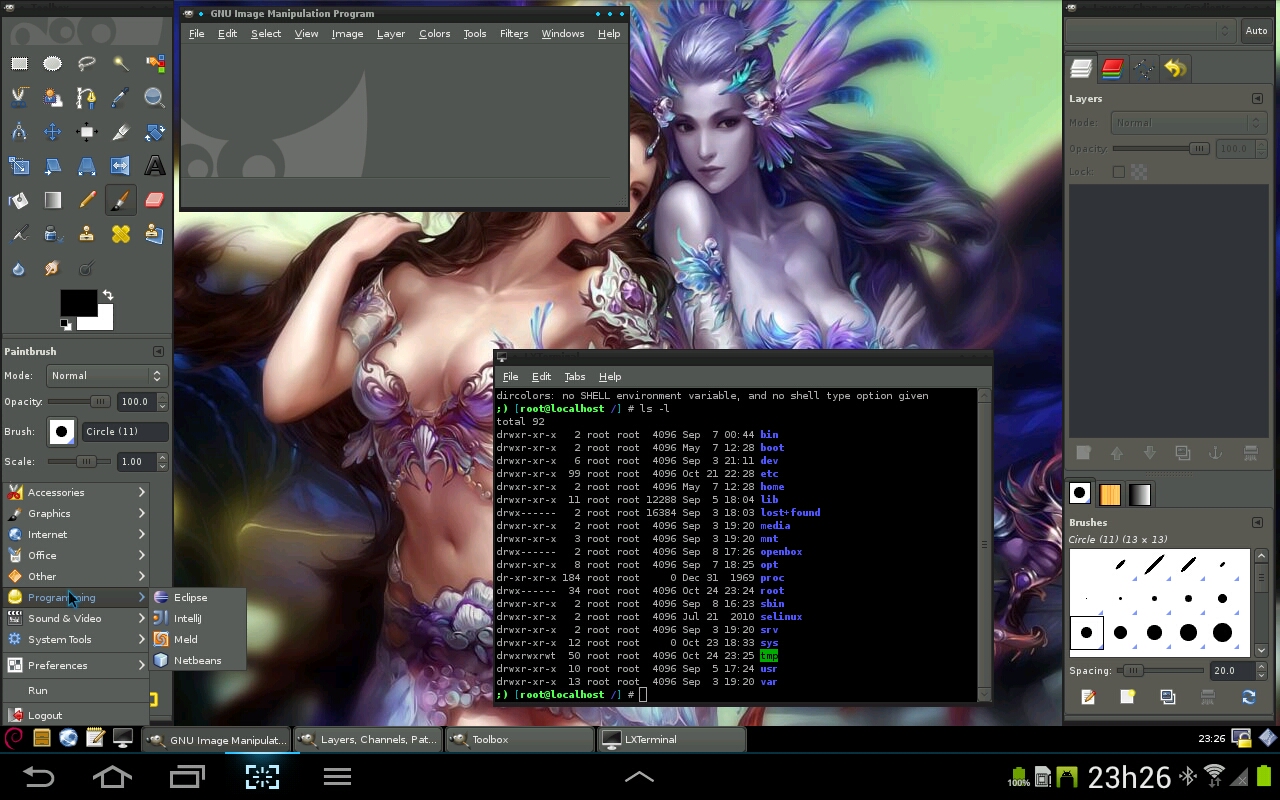
Debian Linux Squeeze running on the Galaxy Tab 10.1 with Android ICS.
There are two apps in the Play Store that do this "job" for you.
The Linux Installer Standard was the first one I learned about. It lets you install the Debian or Ubuntu distributions and you can even select the version. I tried installing with it since it's the one with the most features for customizing your Linux. I had no success. The debootstrap process never finished. I tried every possible alternative, tricks, hacks, and nothing. I just wasted time. Maybe it'll be different for you.
An alternative was the Complete Linux Installer. This one is dead easy to use and worked well for me. It allows installing the Debian, Ubuntu, Arch, Backtrack and Fedora distros. Its problem is that you don't have many choices for customizing the image to be created, since it's already prebuilt and it just downloads it to your Android device. But the main problem was that I wanted to install Debian Wheezy, but the app only has Debian 4 with xfce. I didn't like that.
For the reasons I described above, I decided to create my own disk image of the size I wanted and with Linux configured the way I wanted. If you'd like, you can download it from the link below. It was tested on the Galaxy Tab 10.1 but should work on any Android with an arm processor.
http://www.4shared.com/archive/iDICVTs_/squeeze-armel-android-chrootim.html
I made a video demonstrating Linux on the Galaxy Tab:
Requirements:
- A machine with Debian or Ubuntu (I used my Linux Mint Debian Edition).
- A Galaxy Tab 10.1 rooted with BusyBox installed.
- Lots of patience.
Creating the Image:
On the Linux machine you'll need to install debootstrap.
sudo apt-get update
sudo apt-get install debootstrap
Create a blank image, then format and mount it.
dd if=/dev/zero of=squeeze.img bs=1M count=2048

sudo mkfs.ext4 -F squeeze.img

sudo mkdir /mnt/squeeze/
sudo busybox mount -t ext4 -o loop squeeze.img /mnt/squeeze/
Note: The image file above is for 2GB. Change the count to whatever size you want (the lxde installation takes up more than 800 MB)
Run debootstrap and install the system into the image.
sudo debootstrap --verbose --arch armhf --foreign squeeze /mnt/squeeze/ http://ftp.debian.org/debianUnmount the image
sudo umount /mnt/squeezeInstalling the Image on Android
Create a folder on Android. I put it in /sdcard/Debian. Copy the image into the folder.
The installation boils down to:
- Creating a mount point and mounting the image.
- Chroot into the Debian image.
- Setting environment variables.
- Running the second part of debootstrap
I suggest installing a terminal emulator for Android. I use Better Terminal Emulator. You can use adb shell too.
Type the following commands in the terminal. The code is commented to make it easier to understand.
# Torne-se root.
su

# Crie um ponto de montagem e monte a imagem nele.
mkdir /data/local/debian
busybox mount -o loop,noatime -t ext4 /sdcard/Debian/squeeze.img /data/local/debian

# Faça chroot para o Debian
chroot /data/local/debian/ /bin/sh

# Defina algumas variáveis de ambiente
export PATH=$bin:/usr/bin:/usr/sbin:/bin:$PATH
export TERM=linux
export HOME=/root
export USER=root

# Defina o prompt do shell
export PS1='$USER@$HOSTNAME:${PWD-?} # '

# Termine o debootstrap
/debootstrap/debootstrap --second-stage

# Inicie um shell do bash
/bin/bash
Don't exit the shell before moving on to the next section.
First Boot
Technically the system is running, but we still need to do one last thing:
# Adicione os repositórios para instalação de pacotes.
echo "deb http://ftp.debian.org/debian/ squeeze main contrib non-free" >> /etc/apt/sources.list
echo "deb-src http://ftp.debian.org/debian/ squeeze main contrib non-free" >> /etc/apt/sources.list

# Faça o primeiro update
apt-get update
Return to Android by running the following command:
exitThe system is ready to use, so we need a script to make starting Linux easier. Copy this script to the directory where you placed the image and name it linux.
#!/bin/sh
if [ $EUID -ne 0 ]
then
	echo "Tornando-se root!"
	su -c linux
	exit 1
fi

mnt=/data/local/debian

# Soh eh preciso caso use o nautilus. Se usar outro
# gerenciador de arquivos nao eh necessario.
echo "Remontando a raiz para escrita para escrita..."
busybox mount -o rw,remount /

echo "Montando o Debian Squeeze..."
busybox mount -t ext4 -o loop,noatime squeeze.img $mnt/

echo "Definindo variáveis de ambiente..."
export PATH=$bin:/usr/bin:/usr/sbin:/bin:/sbin:$PATH
export TERM=linux
export HOME=/root
export USER=root
# export PS1='$USER@$HOSTNAME:${PWD-?} # '
export PS1='\[\e[1;31m\][\u@\h \W] \$\[\e[0m\] '

echo "Montando devpts/proc/sysfs..."
busybox mount -t devpts devpts $mnt/dev/pts
busybox mount -t proc proc $mnt/proc
busybox mount -t sysfs sysfs $mnt/sys

# Voce pode colocar aqui o comando para montar o cartao de
# memoria externo tambem. No meu caso o galaxy tab nao tem.
echo "Montando o cartaão de moemória..."
if [ ! -d $mnt/mnt/sdcard ]; then
    mkdir $mnt/mnt/sdcard
fi
busybox mount --bind /mnt/sdcard $mnt/mnt/sdcard

echo "Entrando no Debian Squeeze..."
echo " "
chroot $mnt/ /bin/sh /root/.init.sh

# busybox fuser -m $mnt -k

echo "Desmontando devpts/proc/sysfs..."
busybox umount $mnt/mnt/sdcard
busybox umount $mnt/dev/pts
busybox umount $mnt/proc
busybox umount $mnt/sys

echo "Desmontando Debian Squeeze..."
busybox umount $mnt/
Now whenever you want to run Linux, open the Android terminal emulator and type the commands:
cd /sdcard/Debian
su
sh linux
LXDE or GNOME and VNC Server
LXDE performs much better than Gnome on slower machines, but you can install both, as I did.
LXDE:
apt-get install lxdeGnome:
# Não instale o pacote gnome pois é gigante e cheio de dependências.
# Instale os seguintes pacotes separados:
apt-get install gnome-session gnome-themes gnome-terminal xserver-xorg-core gdm
During installation, two configuration windows will appear. Leave the default settings and continue.
Install the VNC Server.
apt-get install tightvncservertightvncserver is the default vnc server. For better performance, download the source code of turbovnc and libjpegturbo and compile them.
TurboVNC: http://www.virtualgl.org/Downloads/TurboVNC
Libjpeg-turbo: http://libjpeg-turbo.virtualgl.org/
To start and stop the vncserver using "service start", create the script below at /etc/init.d/vncserver and run chmod 755 on it.
export HOME="/root"
export USER="/root"
STARTCMD="vncserver -geometry 1280x752"
STOPCMD="vncserver -kill :1"

case $1 in
    start)
        if [ -e /tmp/.X1-lock ] ; then
            echo "VNCServer already running"
        else
            $STARTCMD
        fi
            ;;
    stop)
        $STOPCMD
        ;;
    restart)
        $STOPCMD
        $STARTCMD
        ;;
    *)
        echo "$0 start|stop|restart"
        exit 1
        ;;
esac

exit 0
Run the command below to start the vncserver automatically.
echo "service vncserver start" >> /root/.bashrcThe first time you run it, it will ask you to enter the vnc password.
Configure the Android vncviewer to connect to localhost on port 5901.
Done! We have Debian 6 running in parallel with Android.
Some tips:
If the exit script can't unmount the Linux image, try running the following command:
killall menu-cachedTo increase the image size after it's been created (replace 256 with the number of megabytes you want to add):
dd if=/dev/zero bs=1M count=256 >> data.img
e2fsck -f data.img
resize2fs data.img
e2fsck -f data.img
To switch to gnome:
update-alternatives --config x-session-manager
Comments 28
Sem dúvidas uma ótima iniciativa.
Será que é completamente possível também fazer uma instalação dessas (com as devidas modificações) num Acer Iconia Tab A500?
Tranquilo. Vai funcionar sim. O Acer Iconia Tab A500 é muito parecido com o Galaxy Tab e por isso você não vai precisar mudar nada. Pode baixar a imagem e testar ou fazer a sua própria.
Obrigado. Irei testar e ver o resultado.
Parabéns pelo artigo !
sera que roda em um Galaxy P1010 ?
Roda sim! Você vai precisar mudar a resolução do vncserver. Onde diz: STARTCMD=”vncserver -geometry 1280×752″ mude para a resolução do seu dispositivo.
Valeu, vou testar……
leonardo ,so pra entender essa distro serve em qualquer modelo ?
A distro é o Debian e esse tutorial é para instalar ele em qualquer dispositivo android com processador arm.
Esse tutorial está obsoleto tendo em vista que hoje já existem apps que fazem esse trabalhão todo pra você de forma automática.
Outra coisa é que também já conseguiram portar o servidor X para o android dispensando assim o VNC e deixando a coisa muito séria.
Veja:
https://play.google.com/store/apps/details?id=ru.meefik.linuxdeploy
https://play.google.com/store/apps/details?id=x.org.server&hl=en
https://play.google.com/store/apps/details?id=au.com.darkside.XServer&hl=en
[…] Squeeze no seu Galaxy Tab, compartilhou a imagem de instalação para os interessados, escreveu um artigo contando como fazer, e ainda publicou um vídeo mostrando como […]
Faltou um descrição de desempenho, no vídeo me pareceu lento… mas achei legal o post.
Realmente é mais lento do que no PC mas funciona. Vale a pena testar. Como eu disse, com processadores quadcore e overclock vai ficar melhor ainda. Um diferencial desta instalação é o turbovnc e a libjpeg-turbo que melhoram muito o desempenho.
[…] Squeeze no seu Galaxy Tab, compartilhou a imagem de instalação para os interessados, escreveu um artigo contando como fazer, e ainda publicou um vídeo mostrando como […]
Sou leigo no assunto. Instala o Linux dentro do Android? (Parece pela foto) ou seja… não é preciso formatar/excluir/arriscar inutilizar o aparelho? Estou inclinado a fazer isso num galaxy tab p6800. Desde que seja “seguro como um simples aplicativo”. Obrigado.
Uma alternativa era o Complete Linux Installer . Este é moleza de usar e funcionou bem para mim. Ele permite a instalação das distros Debian, Ubuntu, Arch, Backtrack e Fedora. O problema dele é que você não tem muitas escolhas de personalização da imagem a ser criada, até porque ela já está pronta e ele só faz o download para o seu dispositivo android. Mas o problema principal foi que eu desejava instalar o Debian Wheezy mas o app só possui o Debian 4 com xfce. Não gostei.
Exatamente. Eu testei mas eu queria o debian com lxde mais atual e por isso preferi fazer a minha imagem personalizada. Na época o wheezy era testing e não funcionava varias coisas. Muitos erros de segmentation falt. Por isso eu testei com o squeeze e ficou ótimo.
Se eu instalar no meu galaxy s2 gt-9100, tem como desinstalar caso eu não goste? Se como como faço? ?
Para desinstalar basta apagar a pasta e os arquivos adicionados.
Olá amigo,
Você acredita que essa instalação também pode ser feita em um Galaxy S III ?
Abraços e Parabéns
Sim. Vou instalar ele agora em um Motorola Razr. Apenas mude a resolução do VNC Server para adaptar-se a sua tela.
Enviei um e-mail porque gostaria de colocar ubuntu ou outra distro deb no meu galaxy tab 2 7 (1310)… poderia me ajudar?
OK. Respondido.
Aguardarei seu tutorial…
Ola Leonardo,
Comprei recentemente um tablet chines (Genesis 7305), com a intenção de substituir o android por linux e rodar alguns programas voltados de áudio do linux, como o Linuxsampler e o Qsynth. Basicamente, eu queria transformar meu tablet em um móduo de timbres midi, para operar com um controlador usb, o que eu já faço com um computador muuuuito antigo.
Eu consegui instalar tanto o debian como o ubuntu, usando o complete linux installer, mas aparentemente, nenhuma dessas soluções que instalam o linux sobre o android tem suporte ao som.
Vc sabe como resolver isso?
Conhece algum tutorial com o qual eu possa eliminar o android e instalar apenas o linux, para que eu possa ter acesso ao hardware de audio, eliminando a camada android?
Desde já obrigado, este tutorial foi muito util para mim!
Eu já havia pesquisado sobre isso e na época não tinha solução pronta. Agora uma breve pesquisa já revelou alguns artigos sobre o assunto (em inglês). Dá uma olhada nisso:
http://forum.xda-developers.com/showthread.php?t=2420586
[
](https://www.youtube.com/watch?v=4wAMu0H0-n0)
Fala amigo.. Sou o Luckzzz do youtube. (foto de cachorro)..
Vc disse pra eu comentar e marcar pra receber atualizações que vc faria um vídeo novo sobre instalar ubuntu no galaxy note 10.1 2014 num novo método.. vlw
Legal, só estou esperando chegar meu smartphone novo. O tutorial vai ser nele mas vai servir para qualquer android.
Qual a senha para acessar pelo vnc atraves dessa imagem que voce disponibilizou?
Faz tempo que eu fiz isso. Nem lembro mais. Tenta 123456. Se não for isso tente alterar a senha do vnc conectando via ssh no linux e rodando o comando vncpasswd.